Bottom Line
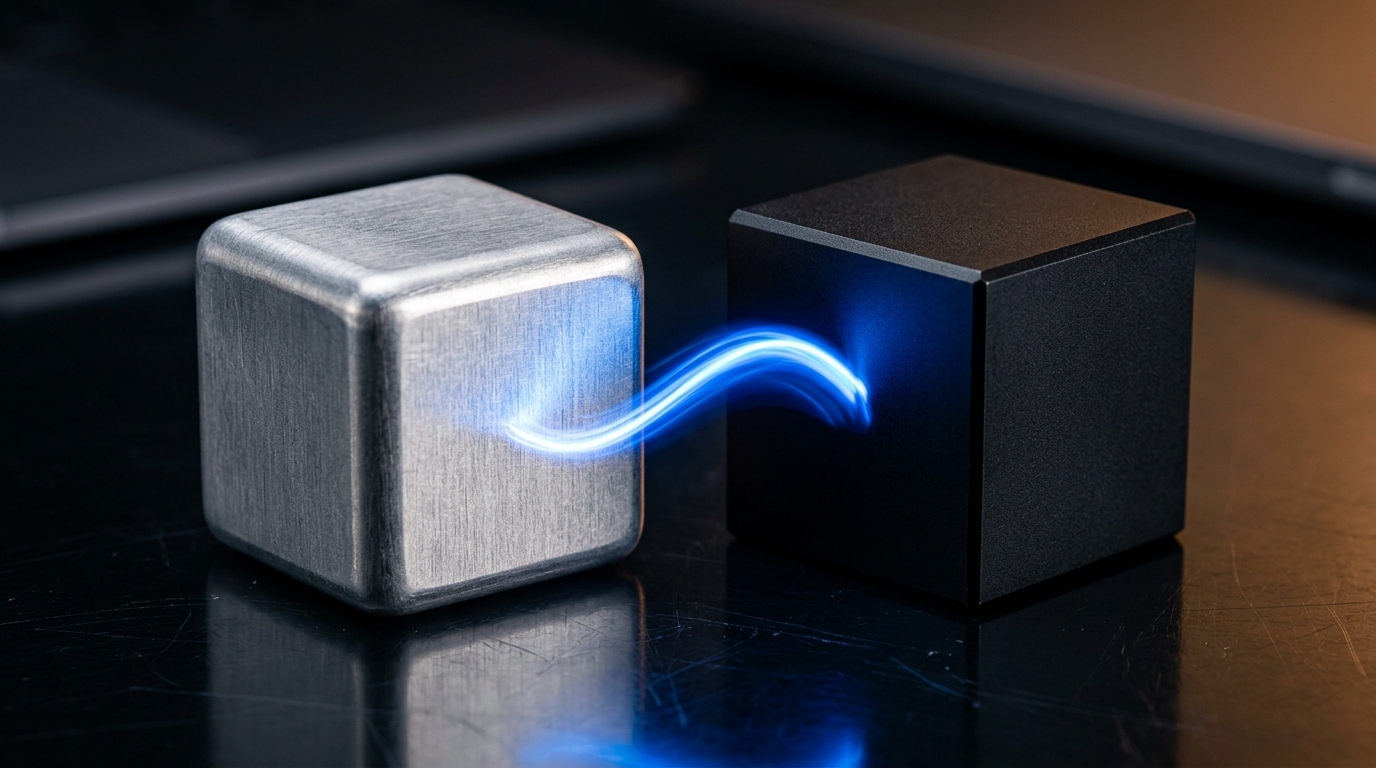
To share clipboard between mac and windows instantly, AirClip uses a local-first network architecture that bypasses the cloud entirely. You install the lightweight app on both operating systems, and it synchronizes text, images, and files in milliseconds without requiring an Apple ID, Microsoft account, or internet connection.
Key Takeaways
- Sync your clipboard in milliseconds without routing data through third-party cloud servers.
- Share text, images, and files natively across entirely different operating systems.
- Keep your data private with a local-first design that never leaves your physical device.
- Skip the setup friction by connecting devices instantly without mandatory user accounts.
Sarah, a front-end developer, stares at her dual-monitor setup. Her primary machine is a custom Windows rig for heavy compiling, but she tests her responsive designs on an M3 MacBook Pro. She copies a CSS snippet on Windows, turns to her Mac, hits Command+V, and gets nothing. She ends up pasting the code into Slack just to send it to herself.

This workflow break happens millions of times a day. You own multiple devices. They run different operating systems. Apple devices talk to Apple devices. Windows devices talk to Windows devices. But the moment you need to bridge that gap, the default tools fail.
You end up relying on email drafts, messaging apps, or clunky cloud drives just to move a simple string of text or a screenshot. You waste time context-switching. You clutter your communication channels with notes meant only for yourself. You need a better way to share clipboard between mac and windows natively. AirClip fixes this broken workflow.
How do you share clipboard between mac and windows instantly?
You install the AirClip app on your macOS and Windows machines, and they automatically discover each other on your local network. AirClip creates a direct, real-time connection between the devices. When you copy something on Windows, it appears on your Mac's clipboard in milliseconds.
The multi-device reality
Most professionals use a mixed-OS environment. You might write code on a PC and test on a Mac. You might edit video on a Mac Studio and game on a Windows desktop. You expect your keyboard and mouse to work across both. You should expect your clipboard to do the same.
When your clipboard stops at the edge of your screen, your productivity stops with it. You lose your train of thought. You stop focusing on the work and start focusing on the transfer mechanism.
Breaking the ecosystem walls
Apple wants you to stay in macOS. Microsoft wants you in Windows 11. Neither builds tools to help you leave their ecosystem.
Universal Clipboard is a fantastic feature if you only buy Apple products. Cloud Clipboard works reasonably well if you only use Windows machines. But these companies have zero incentive to build a bridge between their walled gardens. They leave that problem for you to solve.
The AirClip approach
We built AirClip to ignore these artificial borders. It runs quietly in the background of your operating system. It monitors your system clipboard for changes. When a change occurs, it broadcasts that payload directly to your authenticated devices.
There are no buttons to click. There are no "send to device" menus to navigate. You just use Control+C on your PC and Command+V on your Mac. The experience feels exactly like working on a single machine.
Why is local-first architecture better than cloud sync?
Local-first architecture keeps your data on your hardware. Traditional sync tools send your copied passwords, API keys, and private messages to a remote server before sending them to your second device. AirClip routes everything directly over your local network, ensuring zero bytes leave your physical location.
The latency problem with cloud clipboards
Cloud sync adds unnecessary steps to a very simple action. You copy text. Your computer encrypts it, sends it to a data center hundreds of miles away, and waits for a confirmation. Your second computer pings that server, downloads the text, decrypts it, and places it on the clipboard.
This process takes seconds. Sometimes it stalls completely. Local sync takes milliseconds. AirClip sends the data directly from IP address to IP address over your router. The speed difference is massive. It feels instantaneous.
Working completely offline
You do not always have reliable internet. You might be working on an airplane. You might be in a hotel with a restrictive captive portal. You might be in a secure facility that blocks outbound network traffic.
Because AirClip relies on your local area network, it does not care if your router is connected to the wider internet. As long as your Mac and Windows machines can see each other locally, the sync works perfectly.
Eliminating account requirements
You should not need an account to move a URL two feet across your desk. Cloud services force you to create logins so they can track your usage and tie you to their servers.
AirClip requires zero accounts. You download the app, open it, and pair your devices. You never hand over an email address. You never create a password. You just start working.
What formats can you share clipboard between mac and windows?
You can share clipboard between mac and windows for almost any data type. AirClip handles plain text, rich text formatting, high-resolution images, and even raw files. The app translates the clipboard data structure so the receiving operating system understands exactly what you just copied.
Text and code snippets
Plain text is the most common use case. You copy a hexadecimal color code from a design mockup on your Mac. You paste it directly into your CSS file on Windows.
AirClip handles complex formatting, too. If you copy a bolded, bulleted list from a Word document on Windows, it pastes with the exact same formatting into Apple Pages on your Mac. You do not lose your line breaks or font weights.
High-resolution images and screenshots
Moving images between devices is notoriously annoying. You take a screenshot on Windows using the Snipping Tool. Normally, you would have to save that image to your desktop, upload it to a cloud drive, wait for the sync, download it on your Mac, and then place it in your document.
With AirClip, you just copy the screenshot. You switch to your Mac. You paste it directly into a Figma canvas or a Slack message. The image transfers in full, uncompressed resolution.
Raw files and folders
Copying files works the same way. You can copy a PDF, a ZIP archive, or a folder full of assets on your Windows machine. When you paste on your Mac, AirClip initiates a direct file transfer over your local network.
This eliminates the need for thumb drives or temporary cloud storage links. It turns your clipboard into a high-speed file transfer protocol.
How does AirClip protect your privacy during cross-platform sync?
AirClip protects your privacy by never storing your data on external servers. Every piece of copied text or media transfers via end-to-end encrypted local connections. You never risk exposing sensitive information like passwords, client data, or proprietary code to third-party data breaches.
The danger of cloud-based clipboards
Think about what you copy every day. You copy passwords from your password manager. You copy bank routing numbers. You copy API keys and two-factor authentication codes.
If you use a cloud-based clipboard manager, all of that sensitive data travels to a server you do not control. Even if the company promises encryption, you are trusting them with the keys to your digital life. If they suffer a data breach, your clipboard history could be exposed.
End-to-end encryption by default
AirClip eliminates this risk entirely. We designed the app so we literally cannot see your data. Check out our privacy architecture page for the full technical breakdown.
Even on your local Wi-Fi network, AirClip encrypts the payload. If you are working at a coffee shop on a public network, no one sniffing the network traffic can intercept your clipboard data. The connection between your Mac and Windows machine is secured with industry-standard encryption protocols.
The local-first guarantee
Zero bytes leave your device unless you explicitly opt in to a specific feature. We do not monetize your data. We do not analyze your clipboard habits to serve ads.
Your clipboard is a highly personal stream of consciousness. It contains your immediate thoughts and your most sensitive credentials. It belongs on your hardware, under your control, at all times.
Why do traditional clipboard managers fail at cross-platform sync?
Traditional managers fail because they rely on proprietary cloud ecosystems or require complex manual setups. They treat cross-platform functionality as an afterthought. AirClip was built from day one specifically to share clipboard between mac and windows seamlessly, prioritizing instant local network discovery over clunky cloud syncing.
The Apple Universal Clipboard limitation
Universal Clipboard works like magic. It is fast, reliable, and built directly into the operating system. But it comes with a massive catch. It only works on Apple hardware.
If you introduce a single Windows PC, Linux machine, or Android phone into your workflow, Universal Clipboard becomes useless. It forces you to choose between buying more Apple hardware or suffering through a fragmented workflow.
The Windows Cloud Clipboard limitation
Windows Cloud Clipboard shares a similar flaw. It requires a Microsoft account to function. It sends your data to Microsoft servers. And it only works well between Windows devices.
Trying to force Windows Cloud Clipboard to talk to a Mac requires third-party workarounds, unofficial apps, and constant troubleshooting. It is not worth the effort.
Comparing the options
When you look at the available tools to share clipboard between mac and windows, the differences become obvious.
| Feature | AirClip | Apple Universal | Windows Cloud | Slack / Email |
|---|---|---|---|---|
| Mac & Windows Sync | Yes | No | No | Manual only |
| Local-First Sync | Yes | Yes (Apple only) | No | No |
| No Account Required | Yes | No (Requires Apple ID) | No (Requires MSFT Account) | No |
| Real-Time Speed | Milliseconds | Milliseconds | Seconds | Minutes |
| File Transfer Support | Yes | Yes (Apple only) | No | Yes (with limits) |
AirClip is the only solution designed specifically for mixed-OS environments that respects your privacy and your time.
How do you set up AirClip to share clipboard between mac and windows?
You download the AirClip app for both your Mac and Windows devices. You connect both computers to the same local network. The apps will automatically discover each other. You approve the connection once, and your clipboards instantly synchronize in the background without any further configuration.
Zero configuration networking
We hate complex setups. You should not have to manually enter IP addresses or configure firewall ports.
AirClip uses standard local network discovery protocols. When you launch the app, it broadcasts a secure beacon. Your other devices see that beacon and request a connection. You click "Accept" on your screen, and the cryptographic keys are exchanged. The entire process takes less than thirty seconds.
Managing your clipboard history
AirClip also acts as a local-first clipboard history manager. It saves a running log of everything you copy across all your devices.
If you copied a link on your Mac two hours ago, you can open the AirClip history panel on your Windows machine and retrieve it instantly. This history is stored entirely locally. You can clear it at any time, and you can adjust how many items the app remembers.
Expanding to mobile devices
Once your desktop workflow is fixed, you can expand the system. You can add iOS and Android devices to your local network group.
The exact same principles apply. You can copy text on your Android phone and paste it on your Mac. You can copy an image on your Windows PC and paste it into an iMessage on your iPhone. AirClip turns all your disparate hardware into a single, unified workspace.
FAQ
Q: Do I need an internet connection to use AirClip? No. AirClip operates entirely over your Local Area Network (LAN). As long as your devices are connected to the same Wi-Fi router or network switch, the sync will work perfectly without an active internet connection.
Q: Is there a file size limit for copied items? AirClip handles text and images instantly. For raw files and folders, the transfer speed depends entirely on your local network bandwidth. We do not impose artificial file size limits, but very large files (like 4K video) will take time to transfer over standard Wi-Fi.
Q: Does AirClip store my clipboard history in the cloud? Absolutely not. AirClip is a local-first application. Your clipboard history is stored securely on your physical hard drives. We do not maintain cloud servers for data storage, and we physically cannot access your copied information.
Q: Can I pause the sync if I am copying sensitive data? Yes. You can pause the sync with a single click from the menu bar or system tray. You can also configure AirClip to ignore copies from specific applications, like your password manager, ensuring those credentials never leave the originating device.
Download AirClip for macOS and Windows today and experience what a unified, local-first workflow actually feels like.